Productivity shortcuts & settings
Iterm2
Shortcuts
Command + tab: open new tabCommand + number or Command + ->/<-: move between tabs (who needs tmux!!)Command + d: open split pane horizontalShift + Command + d: split pane verticalctrl + d: close this iterm paneShift + arrow key: move between panes (I customized this by going to Preferences/profiles/Keys and add shortcuts forPrevious PaneandNext Pane)Cmd + K: equivalent to$ clearin terminal
Hotkey Window
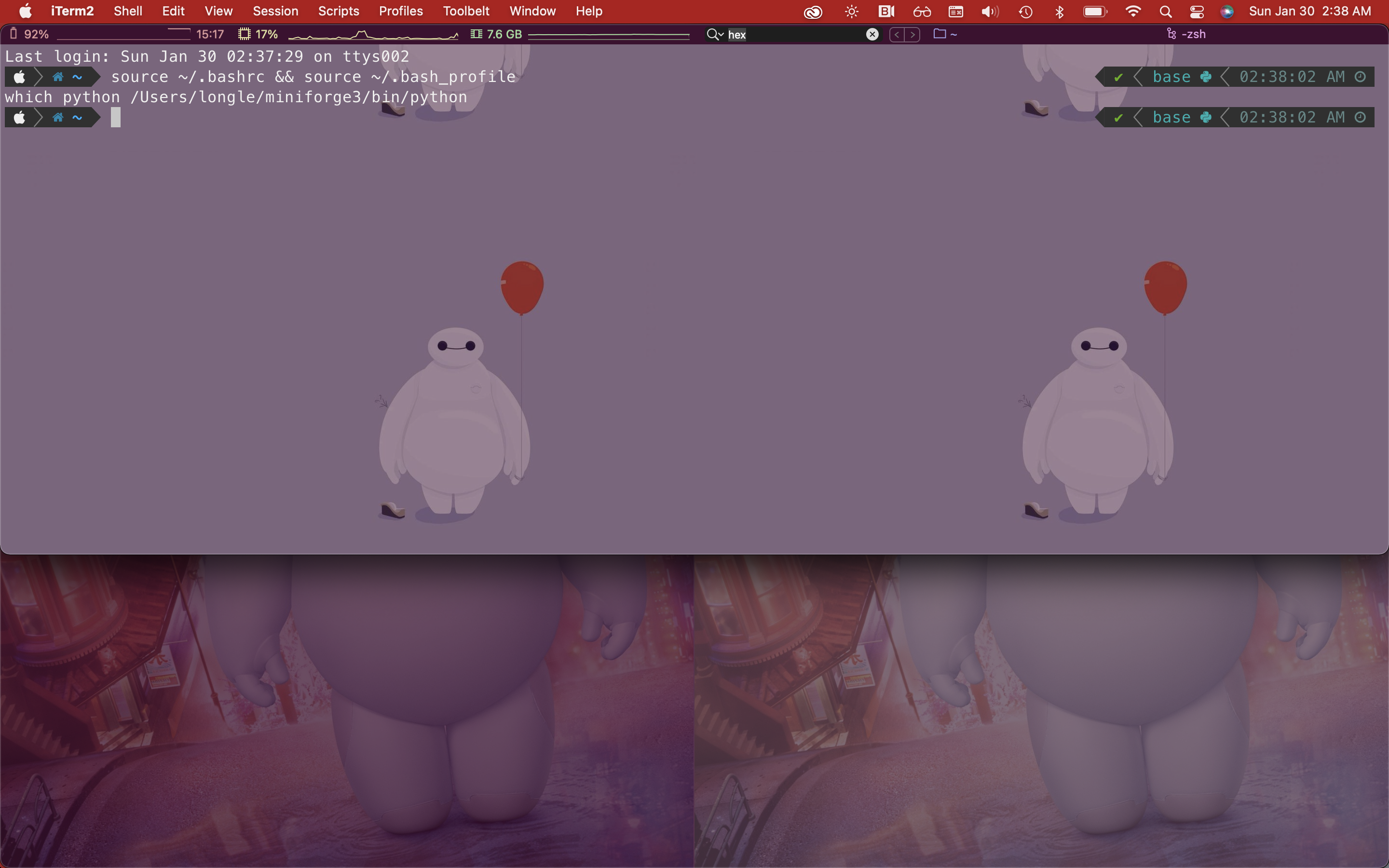
To configure ITerm 2 hot key window.
- Open iTerm2
- Go to
preference > Keys > Hotkey - “Create a Dedicated HotKey Window”
- On the Hotkey, choose the shortcut by holding Ctrl and h. Then click ok to create
Ctrl + hto open use hotkey window- Set background image randomly. Download file from https://github.com/jamsyoung/iterm2-random-background to
~/Downloads. Then go to iterm2Preferences/profiles/generaland add the execution codeosascript ~/Downloads/iterm2-random-background.scpt(I thinkosameans os Apple?) in “Send text at start”.
Cool things to configure
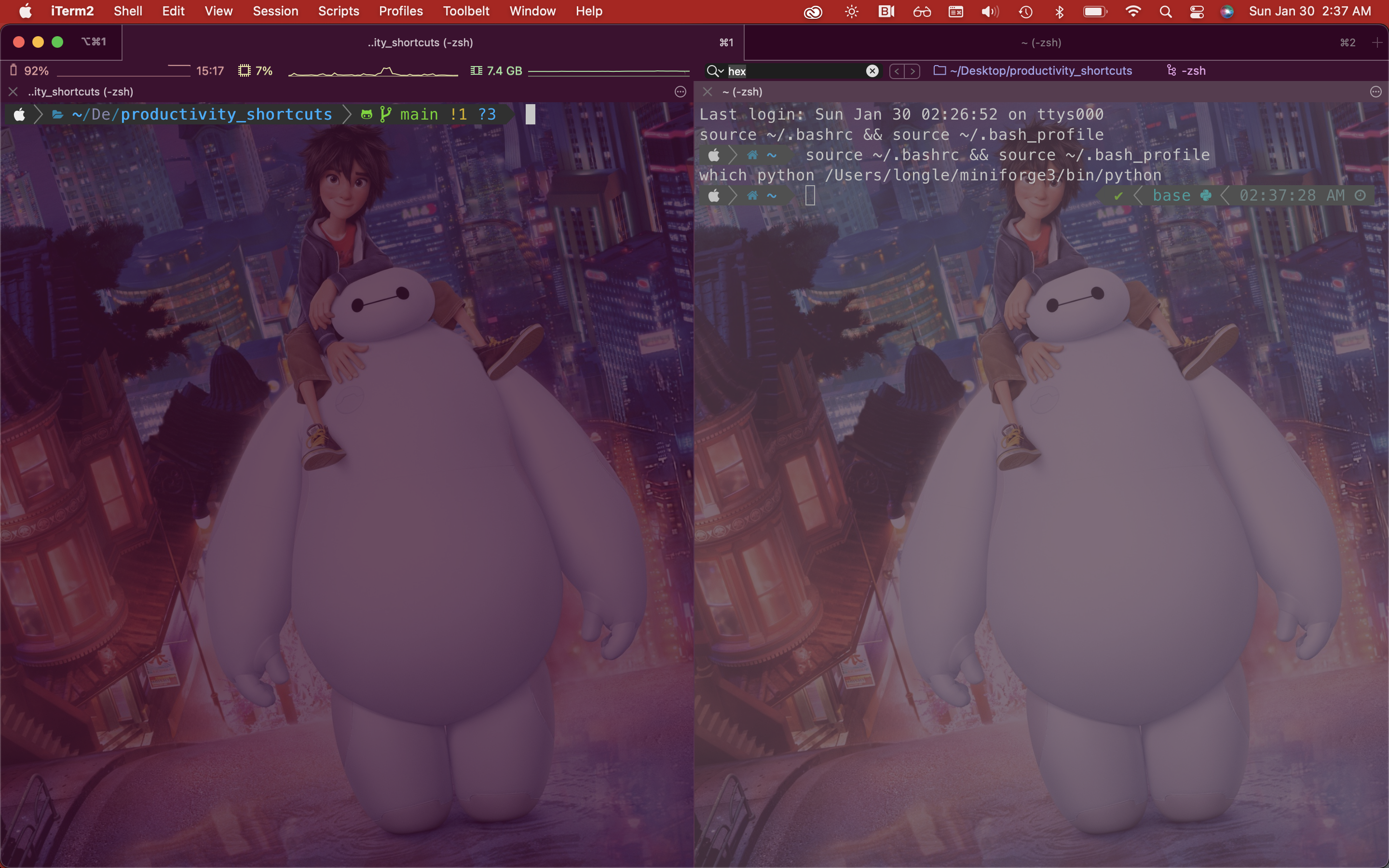
- Configure iterms to either be transparent or use background image. (Preferences>profile>(select the correct profile)>windows)
- Use the ubuntu colors! (Preferences>profile>colors)
- Use
ZSH_THEME="powerlevel10k/powerlevel10k"in the.zshrcfile. May have to installoh-my-zsh.
Remap keys
https://apple.stackexchange.com/questions/89981/remapping-keys-in-iterm2
In iterm2, go to Preferences/keys/keybindings then we can add custom key binding.
For example, I want to remap cmd + / to gc. I’ll do cmd + / in the keyboard shortcut, and select
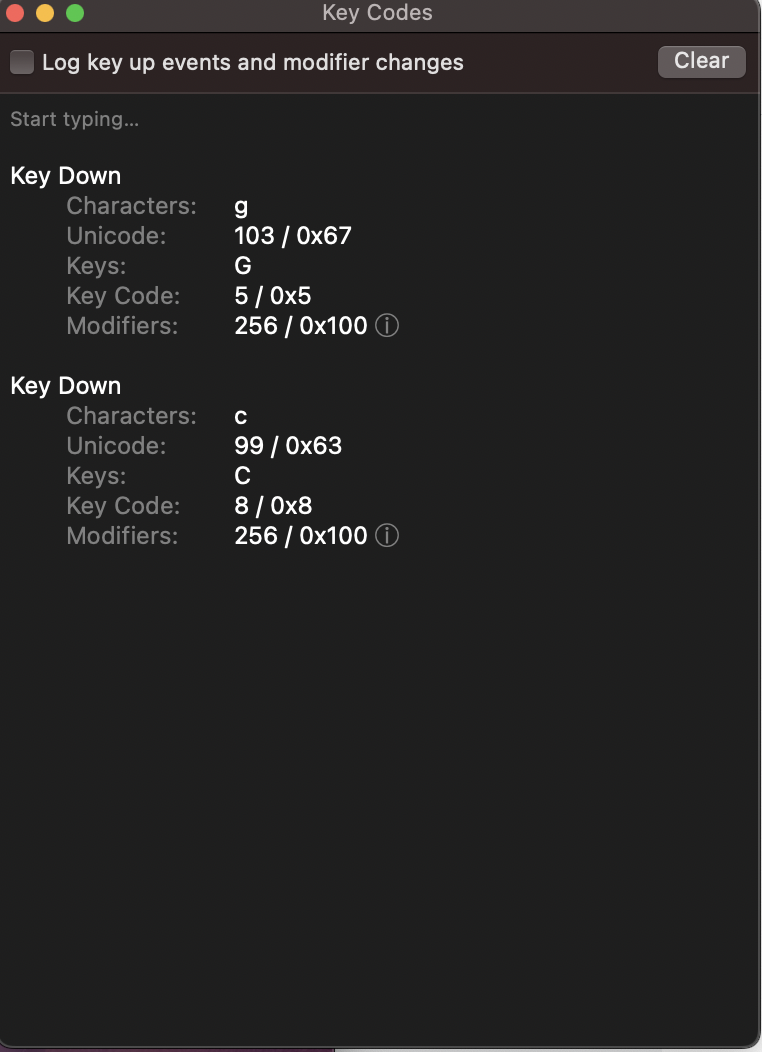
send hex code. To find out the hex code for gc, I use the app Key Codes in Mac and type gc in the
app. The code is the last part of unicode. For example, g is 0x67 and c is 0x63.
Some random cool terminal apps
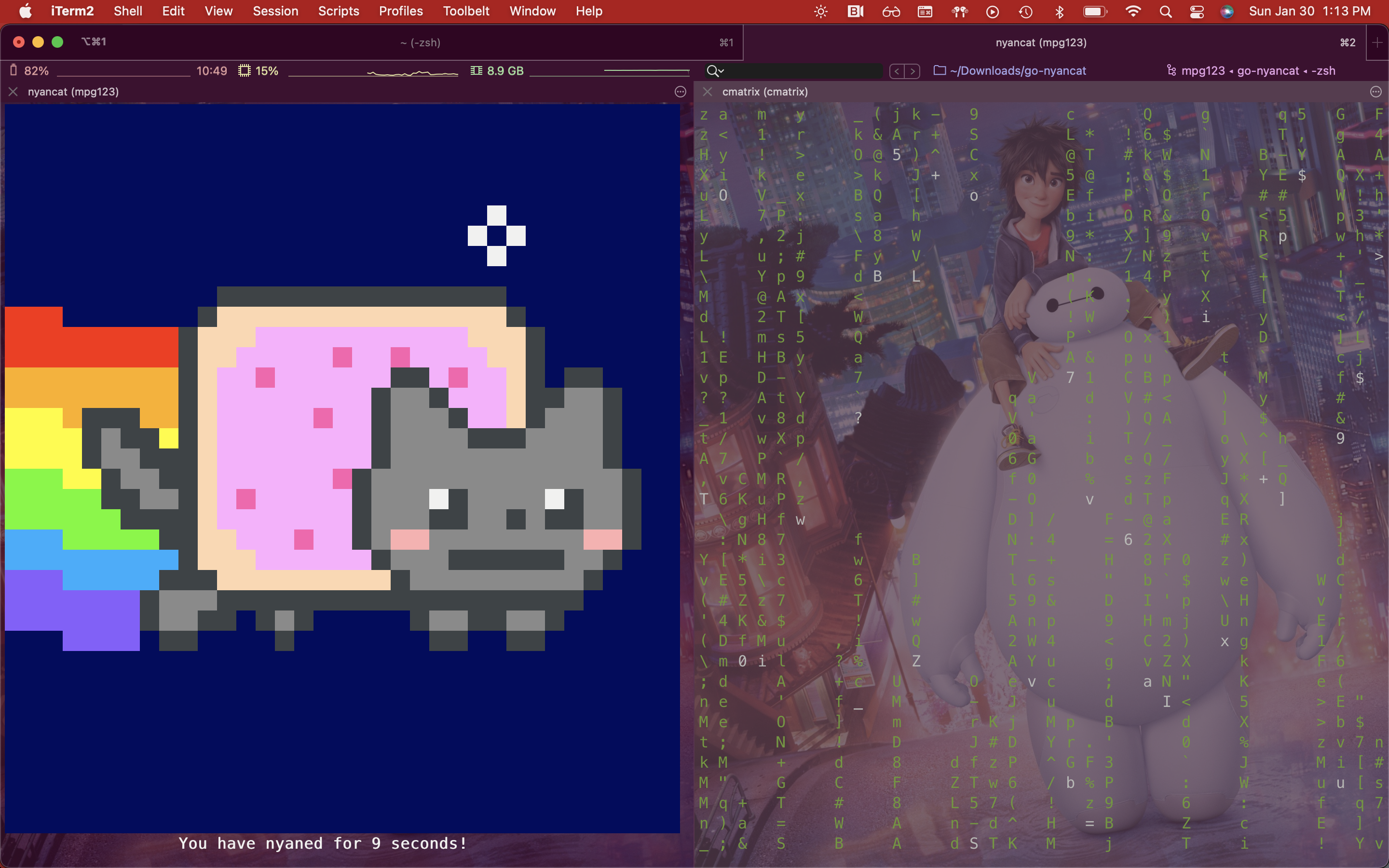
- neofetch, screenfetch. Installed by brew.
- go-nyancat https://github.com/NARKOZ/go-nyancat. Then use
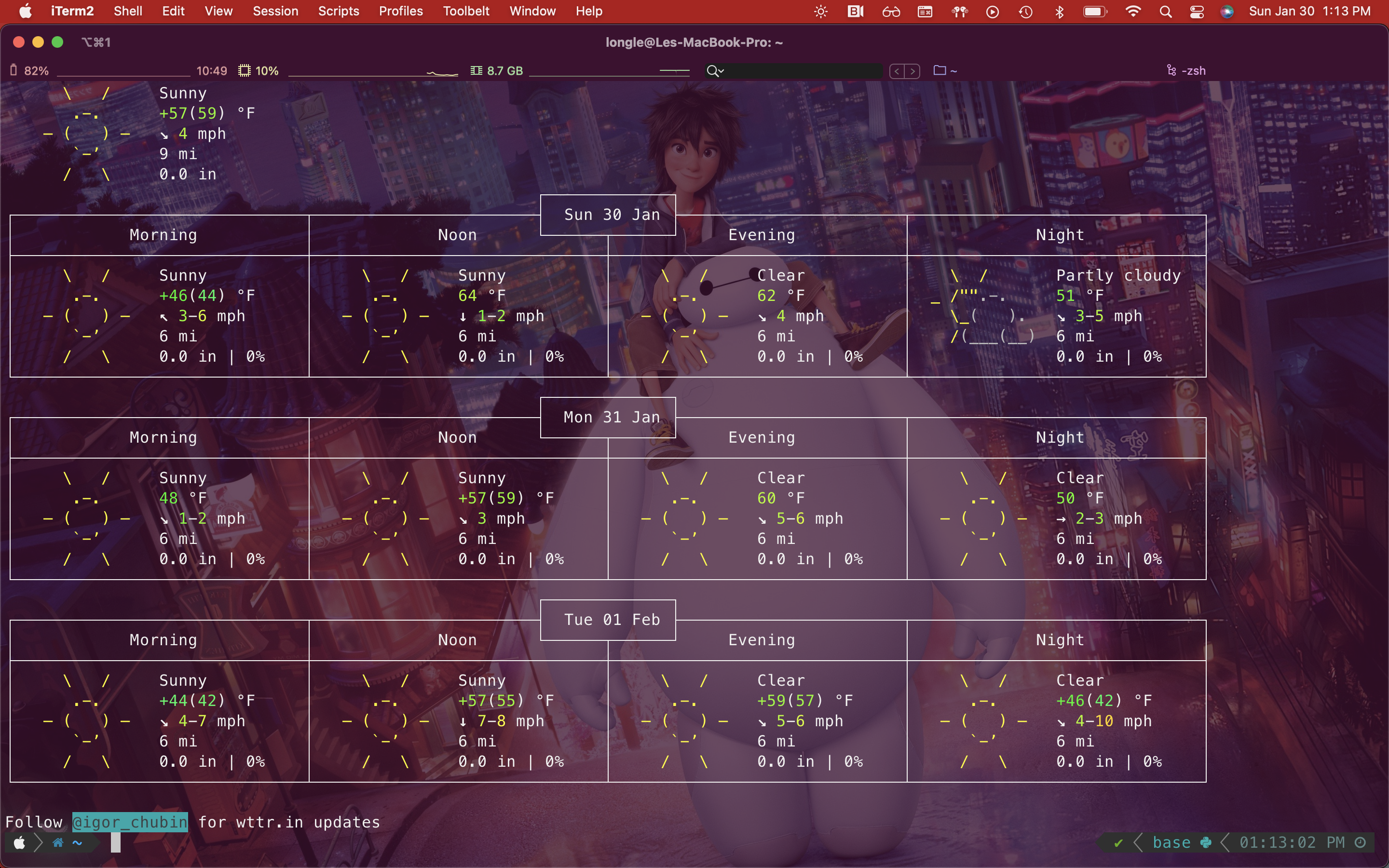
aliasinzhsrcto mapnyancattocd ~/Downloads/go-nyancat && ./go-nyancat. - alias weather=’curl http://wttr.in/’.
w3m google.comto surf google from the terminal.- cmatrix https://github.com/abishekvashok/cmatrix.
fish: a cool terminal with stuff like auto-suggestion, syntax highlighting, and completion. We can get the same thing in zsh by installing a bunch of zhs plugins (https://www.youtube.com/watch?v=SVh4osULjP4&ab_channel=DanielLaera).Chrome
Shortcuts
Cmd + t: open new tabCmd + n: new windowCmd + shift + n: new igconito windowCmd + number: move between tabs- https://support.google.com/chrome/answer/157179?hl=en&co=GENIE.Platform%3DDesktop#zippy=%2Ctab-and-window-shortcuts
- ctr + tab: jump to right tab
- Ctrl + shift + tab: jump to left tab
cmd+y: history
Extensions
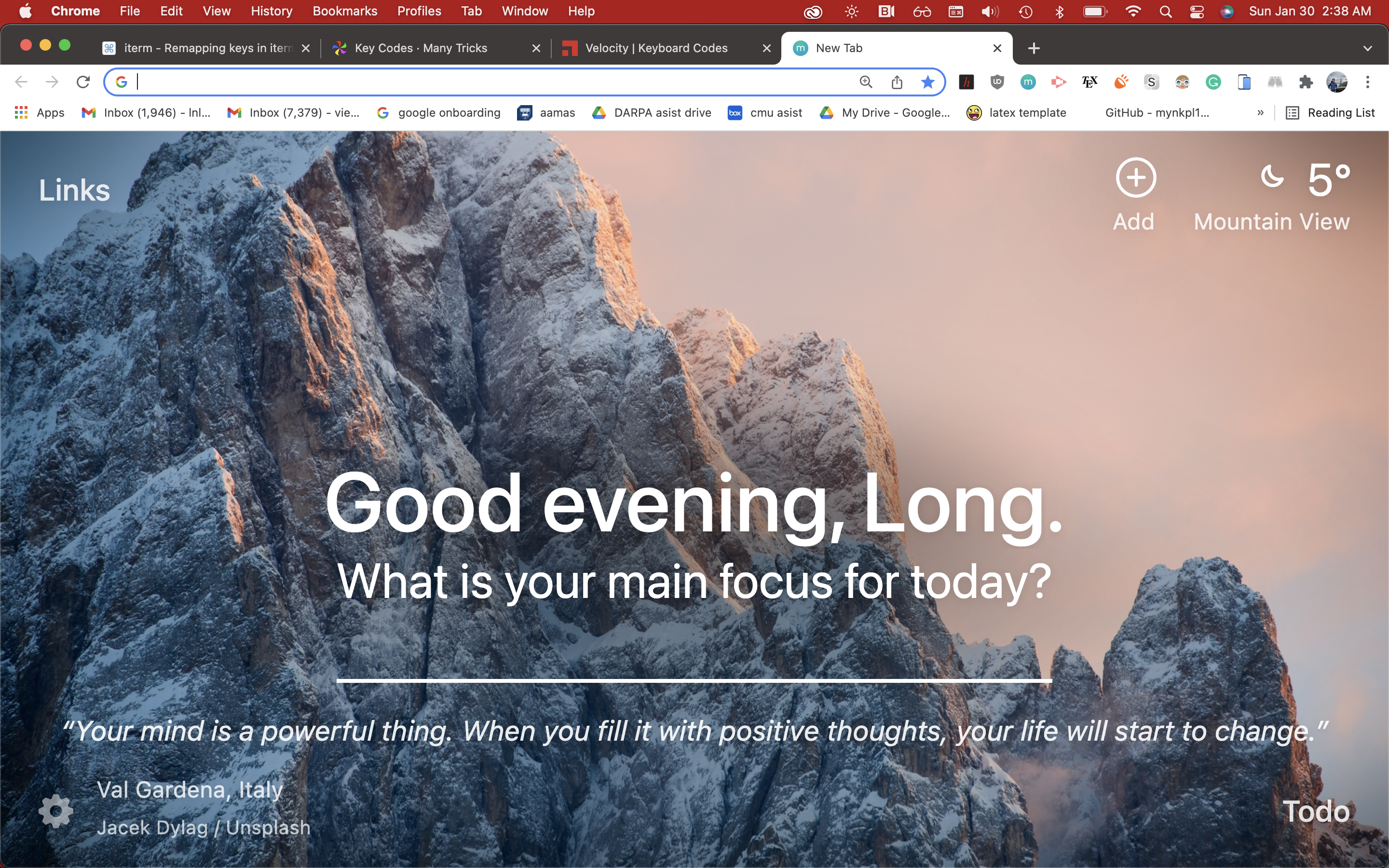
- Use Ubuntu theme
- Use https://chrome.google.com/webstore/detail/shortkeys-custom-keyboard/logpjaacgmcbpdkdchjiaagddngobkck?hl=en extension to build custom
shortcuts.
- shift+left, shift+right to go back and go forward (in url)
- command+left, command+right to move between tabs.
- Note: there’re some issues with command on a new tab: https://github.com/mikecrittenden/shortkeys/issues/44. The solution is
to use Chrome native shortcut UI via this extension. See bottom of this page https://github.com/mikecrittenden/shortkeys/wiki/How-To-Use-Shortkeys. Basically, need to go to chrome://extensions/shortcuts and configure the shortcut there instead.
chrome://extensions/configureCommands
Mac
Shortcuts
-
Open spotlight search
Cmd + Space -
Open new iterms at this folder
Shift + Cmd + Option + N -
Undo
Command + Z -
Redo
Command + Shift + Z - In finder, do
Shift + Cmd + G: to be able to navigate to hidden folders Cmd + Tabswitch between apps.
Cool apps
Spectacle
Window manager. It shows all the shortcuts in the app. Move left/right, move top left/right, move bottom left/right, move center, move full-screen
Mac Spaces & Mission Control
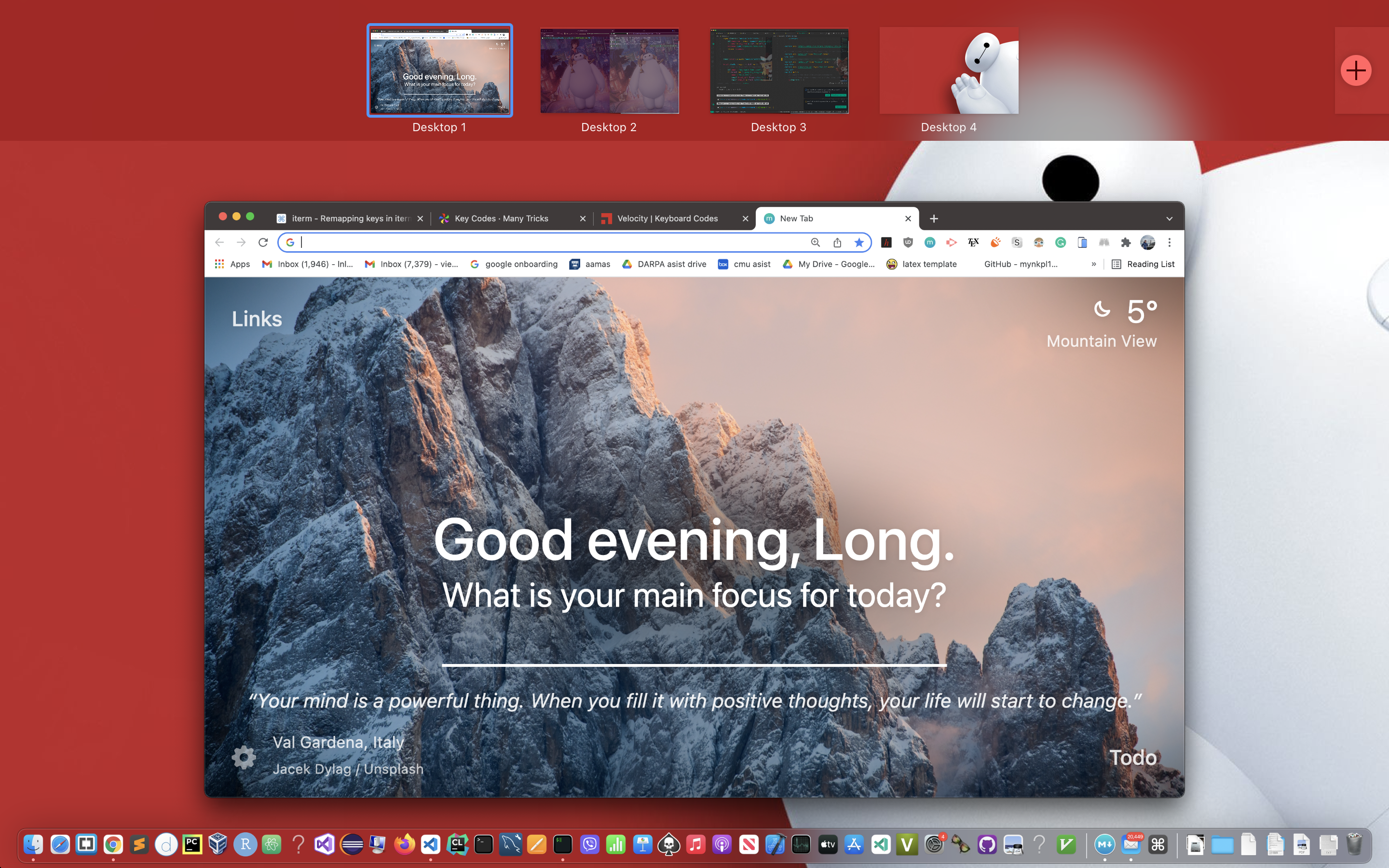
- Ctrl + Up: see the mission control to create new workspaces
- Ctr + <-/->: Moving between spaces
- Ctr + Down: see all instances of this app (e.g. multiple windows of Chrome)
AppCleaner
- To delete apps resolutely from Mac
List of cool apps: https://www.youtube.com/watch?v=RNqDkF17ogY&t=411s&ab_channel=devaslife
Alfred
Replacement for Spotlight search.
Raycast
Free alternative for Alfred
CursorEffect 2
Make the mouse look pretty
Keycastr
Capture the typed keys
Istat Menu
Display stuff like weather, cpu, memory usages in the top bar.
InsomniaX
Disable lid sleep. Used to be good for stuff like training ML models over night on Jupyter notebook, and we want to disable Mac autosleep.
Aerial companion
Beautiful desktop and screensaver based on Apple 4K video TV.
Dozer
Arrange the menu bar/hide application. Free alternative to Bartender.
Weather live widget (appstore)
Slick app to display weather / current temperature on the menu bar.
VSCode
Shortcuts
To change keyboard shortcuts. Open command palette and search for keyboard shortcuts
Trick to find out what the command’s name for a key binding. E.g. I don’t know what the name of the command associated with Cmd + W. Go to keyboard shortcuts, search for tab and pick a random tab command that has no key binding. Then, try to add Cmd + W key binding to it. VSCode will warn that there are already existing commands and you can see what they are. Alternatively, put the command in bracket and search in keyboards i.e. search for "cmd + w"
Useful reference: https://zellwk.com/blog/useful-vscode-keyboard-shortcuts/
-
Open command PaletteCmd + Shift + P -
Go to File(Search for files in this project) Cmd + p -
Toggle the sidebar Cmd + b
-
Go to symbol in workplace(search for variables) Cmd + t Search- Cmd + f: within a file
- Cmd + Shift + F: within all files (in this project)
-
File: New Untitled FileCmd + n -
Delete file“Cmd + Delete” when clicking on the file from the explorer (Cmd + b) - Move between panes
Cmd + 1, Cmd + 2
- Custom shortcuts: Cmd + left, Cmd + right (arrow key) to move between
windows (name of commands
view:focus left/right editor group.
- Custom shortcuts: Cmd + left, Cmd + right (arrow key) to move between
windows (name of commands
-
Close window(Delete Tab) Cmd + W -
split editorCmd + \ Open new external monitorShift + Cmd + C- Change the default terminal in vscode to iterm https://stackoverflow.com/questions/29957456/change-default-terminal-app-in-visual-studio-code-on-mac
- Jump tabs Within a pane
- Shift + Cmd + [
- Shift + Cmd + ]
- Custom map now to shift+left, shift+right (name of commands
view: open previous/next editor)
- Resizing panes. I customized it to
Shift =(i.e. + sign) toincrease current view size(name of command).-(i.e. - sign) todecrease current view size.
-
Move linesOption + up or down -
Select mutiple linesShift + arrow keys -
Move lines up downOption + up/down arrows - Move files from one split window to another (https://stackoverflow.com/questions/44018175/hotkey-to-move-a-tab-from-one-of-two-split-editors-to-another)
- workbench.action.moveEditorToNextGroup View: Move Editor into Next Group: remapped to -> + ->
- workbench.action.moveEditorToPreviousGroup View: Move Editor into Previous Group: remapped to <- + <-
- highlight code and then do
Cmd + /to comment or uncomment code (generally works for sublime and other editors than Vscode as well!)
Configure

- Make vscode transparent by installing vibrancy. Can see through the background
- Use bearded or spotify or github themes
- Use the (anime) background extension
- (Of course) use vim extension (with vimrc linked! Can config this in user settings)
- Use github copilot (It’s insanely smart. Holy smoke!)
- Use extensions for specific language (e.g. Python, Javascript suppport have separate extensions).
Vim
Shortcuts
-
Move to end of line $
-
Move to the end of line and enter insert Shift + a
-
Move to the beginning of line 0
-
Move to the beginning of line and enter insert Shift + i
-
New line below and insert o
-
New line above and insert Shift + o
- All the yank and delete stuff
- y, d
- yy: yank line
- dd: delete line
- Shift-D (preferred) or Shift-$: delete the rest of the line
- p: paste
- yw: yank word
- yiw: yank (inner) word.
- Similarly,
- dw, diw, vw, viw (visual select word).
- NOTE: we can use
cw,ccinstead ofdw,ddto delete AND jump into insert mode
- NOTE: we can use
- The difference between yw and yiw is that for yw you need to be at the beginning of the word. For yiw, you can be in a character inside a word.
-
Some cool thing to do with v,i,d,c. Say, I want to delete the args
x,y,zofdef fun(x,y,z). I can go to somewhere within the bracket and dodi(ordi)to delete orci(orci)to delete and enter insert mode (so that I can type in other args e.g.). -
Undo u
-
Redo Ctrl + r
- Go to definition (e.g. of a function, variable…) gd
-
Go to the file under cursor: gf (useful to look up
importstatements). Can usectrl+w gfto open the file in a new tab orctrl+w fto open in new split - next tab: gt
-
prev tab: gT
-
Jump back to prev location (“old” for old) Ctrl + o
-
Jump forward to next location Ctrl + i
- Jump back to the prev files: ctrl + ^. Useful for toggling between two files that you’re editting at once. (useful when first used with fzf to open the second file).
- Code folding
- zc: close
- zo: open
- za: toggle the the fold
- zr: reduce fold level (open)
- zm: increase fold level (close)
- zR: open all folds
- zM: close all folds
-
Go to the top gg
-
Go to bottom Shift + g
-
Move to next/back brackets Shift + [, Shift + ]
-
Search the current word under cursor. (jump to the next occurence) *
- Repeat last change in normal mode (work for stuff like dw) .
-
@: repeat last command entered with
:something. - When searching
- n: to next
- shift + n : to go back
- When doing auto-completion
- shift + n: go to the next suggestion
- shift + p: previous suggestion
- Insertion
- i: insert before cursor
- a: insert after cursor
- s: delete word and enter insert mode
- x: delete word
- Shift + i: insert beginning of line
- Shift + a: insert end of line
- f + character: jump on that character within this line
- t + character: jump to before character within this line
- as usual in vim,
Shift + somethingis going backward so we can do stuff likeshift + f,shift + t,shift + tab(in suggestion) andshift + s(in the sneak pluggin)
- as usual in vim,
- Use
;to repeat the t and f jumps.,to go backward. https://stackoverflow.com/questions/10340562/vim-repeat-find-next-character-x
- e: get to the end of a word
- %: jump to matching brackets like (, ) or {, }
- tip: deleting args of function?
- when already at the beginning of the bracket. Use d t then ) (or whatever bracket symbol you want).
- At the beginning of the line, hit “shift + %” to jump to the bracket. Then
ca]to delete everything inside the bracket including the brackets themselves. Useci]to delete only the things inside and keep the bracket.cis for delete and enters insert mode. Replace]by whatever bracket type you have (e.g.),})
- Ctrl + a: increment a number under cursor
- Ctrl + x: decrement a number under cursor
- Shift + ~ : toggle capitalization of word
- Capitalize the whole word:
- Shift + v: to visualize highlight the word
- Then, Shift + U: to capitalize the word
- Marking
- use
mato mark the location of the current line to registera. - Then later use
'ato go back to that location. - Use capital letter (e.g.
mA) to mark across files!
- use
Commands
Panes
- :sp or :split for horizontal pane split
- :vs or :vsplit for vertical split
- :q or Ctrl+w C to close the pane
- Ctrl+w s: horizontal split
- Ctrl+w v: vertical split
- ctrl+o: close every panes except the current one
- ctrl+w =: equal size panes
- ctrl+w r: rotate panes (switch the positions of the panes)
Sourcing files
:so nameOfTheFile in vim to source a .vimrc or something.vim file
or :so % to source the current file
Autocomplete
- Ctrl+n (next) and ctrl+p (prev): to bring up vim built-in autocomplete
- Highly recommend: install
coc(https://www.youtube.com/watch?v=OXEVhnY621M&t=3s&ab_channel=ChrisAtMachine)
Macros
Macros: combinations of keys
Store macros to register
- qa (store to register a)
- then type some command
- q finish recording macro
- @a repeat last op from register
Terminal
https://www.youtube.com/watch?v=8m5t9VDAqDE&t=122s&ab_channel=ThePrimeagen
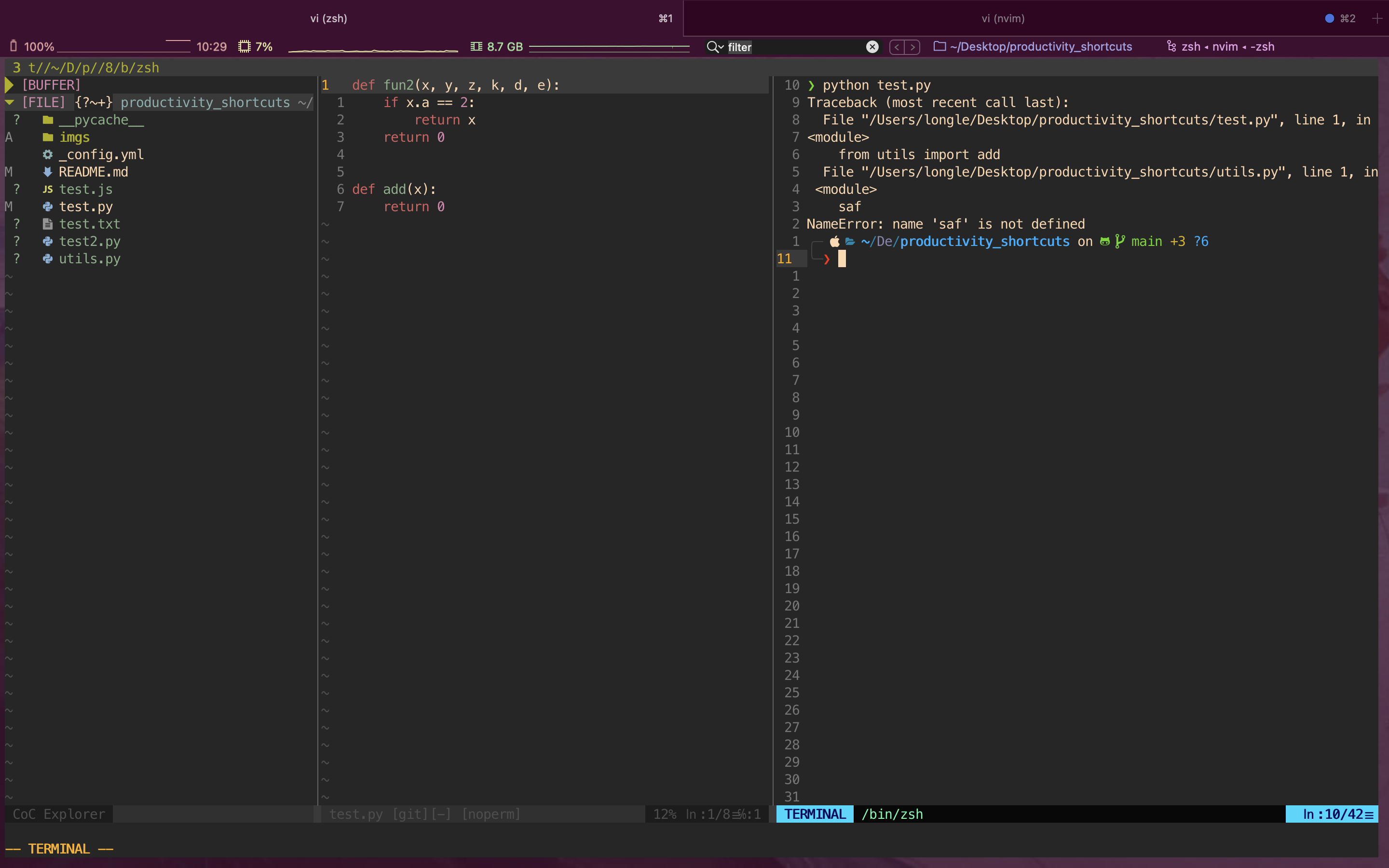
Neovim (and vim) has terminal. Use ctrl+\ ctrl+n to leave the terminal (insert) mode.
Do :terminal to open in new tab or :split | terminal or :vsplit | terminal to open in new split.
Trick: (Primageon) when there’s an error message coming from file abc.xyz we can put the cursor under the file and hit ctrl+w f to go to that file
Packages
- Use Vundle https://github.com/VundleVim/Vundle.vim to install packages. Usually, we put
Plugin "something"in .vimrc within the Vundle bracket, then do:so %and:PluginInstall. Then the package is ready to use! We can even edit the package in~/.vim/bundle/SpecificPackagename. - Use fzf for fuzzy finder. Good resource: https://www.youtube.com/watch?v=on1AzaZzQ7k&ab_channel=ChrisAtMachine
- We can even use fzf in terminal. See .zshrc files for more. Basically download key-bindings.zsh and completion.zsh files from https://github.com/junegunn/fzf/blob/master/shell/ and source them in .zshrc as
- https://github.com/marlonrichert/zsh-autocomplete, https://github.com/zsh-users/zsh-syntax-highlighting, zsh auto suggestion
- To set custom key binding, go to each plugin folder (e.g. .zsh/zsh-autocomplete) and modify
vi .zshrc.# # for fzf fuzzy finder. Download from https://github.com/junegunn/fzf/blob/master/shell/ source ~/Downloads/fzf_zsh/completion.zsh source ~/Downloads/fzf_zsh/key-bindings.zsh # # ctrl+r : search through command history # # ctrl+t : search through files (NOT folder) # # normally, alt+c search through folders. But iterm2 and Mac # # are usually weird with alt/option key. https://github.com/junegunn/fzf/issues/164 # # A solution is to do `bindkey "ç" fzf-cd-widget` where "ç" is # # the character from hitting alt+c. # # Issues: Mac search folder can't access `Documents` folder. https://github.com/junegunn/fzf/issues/2073 bindkey "ç" fzf-cd-widget # # # https://mike.place/2017/fzf-fd/#:~:text=fzf%20is%20a%20command%20line,find%20files%20and%20change%20directories. # # Use fd with fzf. And now, we have access to `Documents` folder! # # --hiden to search hidden files # Also, see https://github.com/sharkdp/fd#using-fd-with-fzf export FZF_DEFAULT_COMMAND="fd --type file --hidden --follow --color=always --exclude .git" export FZF_DEFAULT_OPTS="--ansi" export FZF_CTRL_T_COMMAND="$FZF_DEFAULT_COMMAND" # https://github.com/sharkdp/fd. Use "-H" to search hidden # folders export FZF_ALT_C_COMMAND="fd -H -t d"
- Tcomment_vim: In visual mode, type
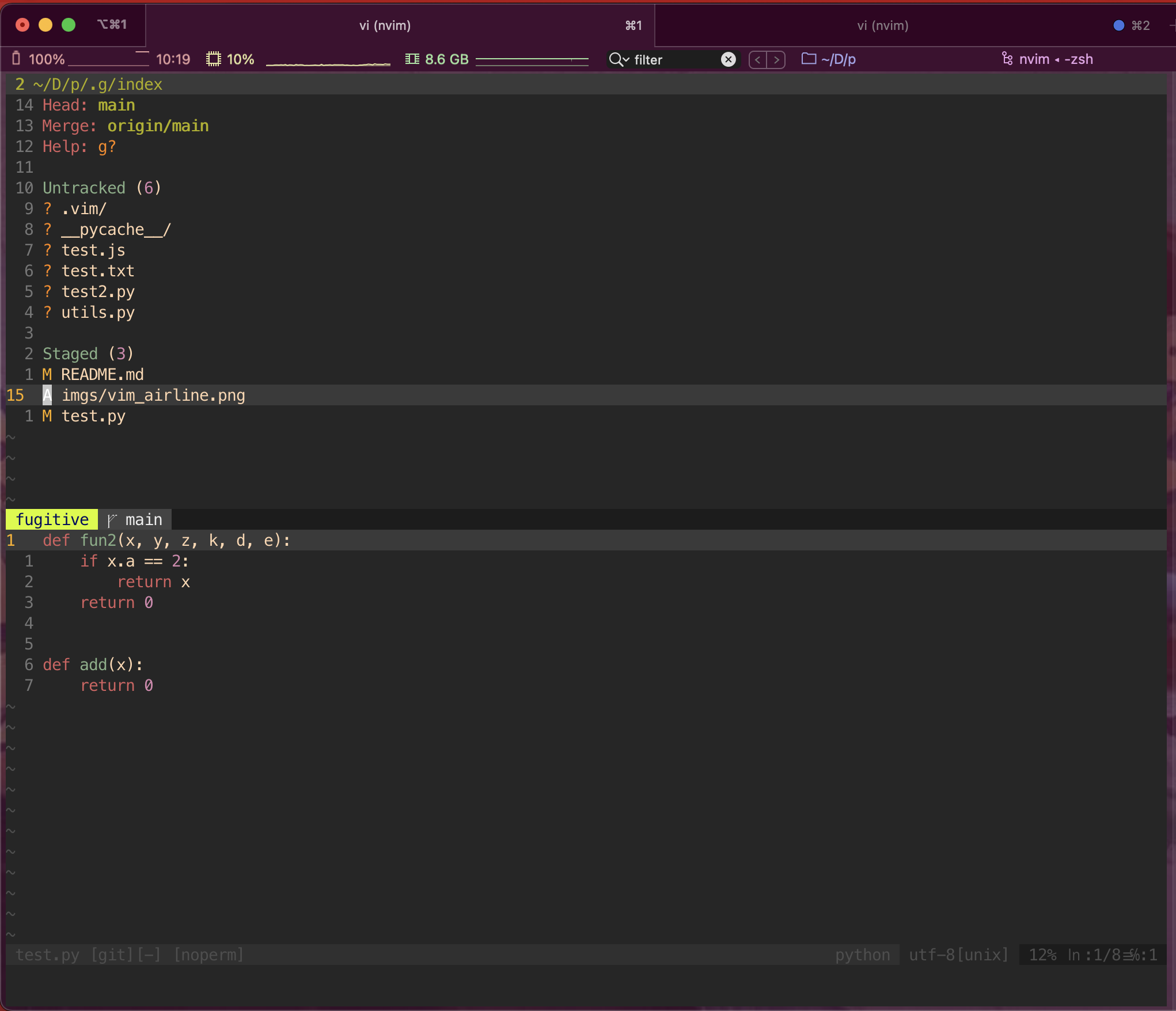
gcto comment/uncomment code block. But most other editors usecmd + /to comment code so I mapcmd + /togcusing the iterm2 trick. (see above in iterm2 remap trick). Note that Vim also doesn’t support the cmd key. - Vim_airline: for awesome status bar at the end.
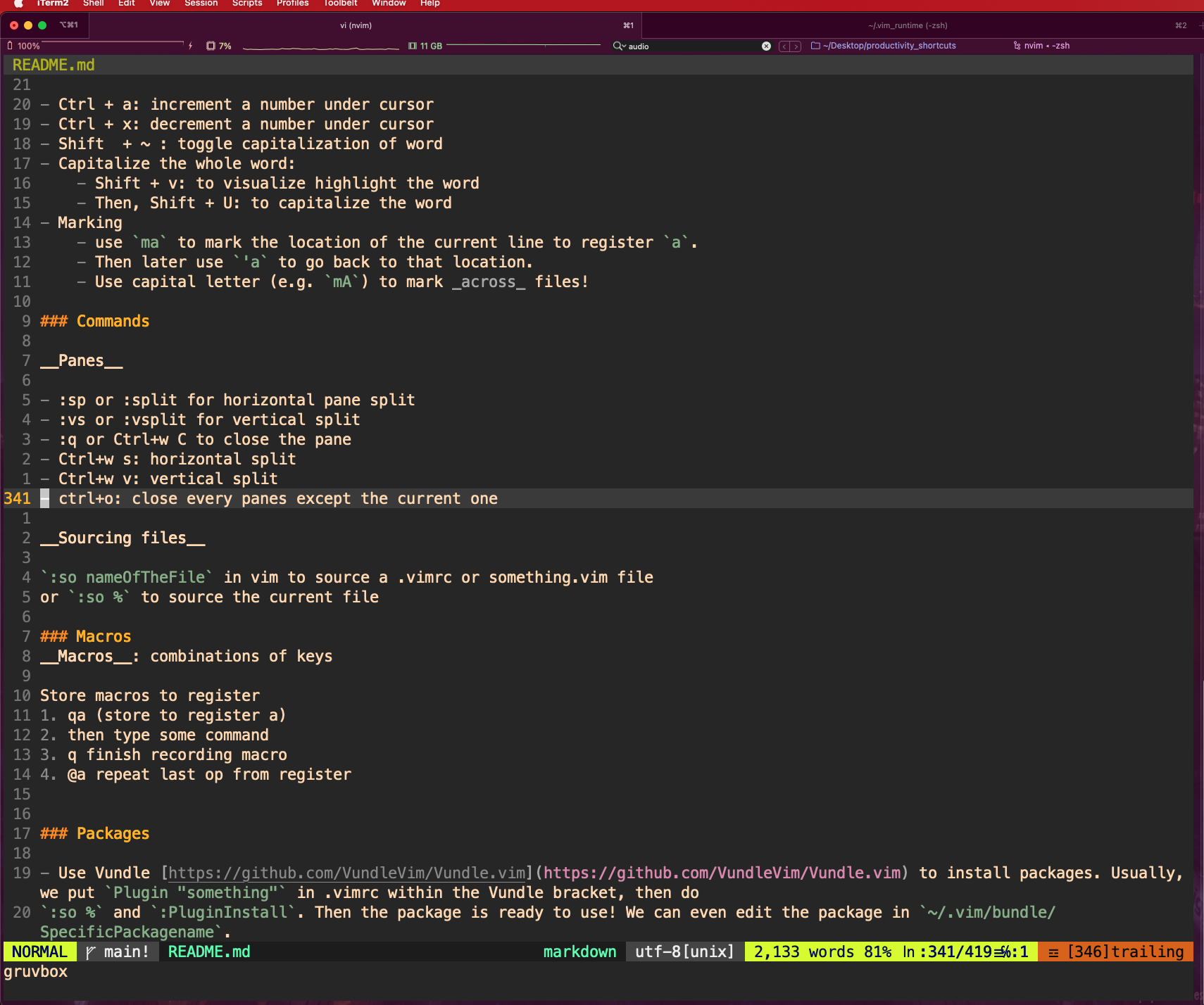
Install color theme
Download a something.vim from github. Then put that into ~/.vim/colors. Then, we can use “:colorscheme something” to set the color.
Primageon
https://www.youtube.com/channel/UC8ENHE5xdFSwx71u3fDH5Xw The goat!!
https://www.youtube.com/watch?v=nnhqVDIx-go&ab_channel=ThePrimeagen: More navigation
Configure
Configure the file .vimrc in the root directory
Neovim
Neovim also supports github copilot! https://github.com/github/copilot.vim. It’s also easy to sync vim and neovim configs https://vi.stackexchange.com/questions/12794/how-to-share-config-between-vim-and-neovim. Only need to put the following
set runtimepath^=~/.vim runtimepath+=~/.vim/after
let &packpath=&runtimepath
source ~/.vimrc
in ~/.config/nvim/init.vim file.